
In case of emergency – that is, forgetting your login for 1Password, or someone else needing to get in – the 1Password Emergency Kit can truly save the day. This short and sweet document keeps all the necessary details for getting into your account in one place. But you shouldn’t need to break glass to retrieve it (which is a huge pain to clean up, not to mention dangerous). Here’s how to keep your Emergency Kit both safe and accessible.
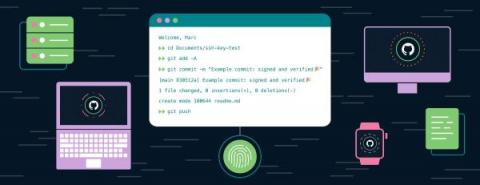
1Password for SSH was shared with the world last month. I have been using it since it was available for internal beta. I knew it would improve my endpoint security. I didn’t expect it to change the way I generated, stored and used SSH keys the way I work.
While 1Password is usually there to autofill your passwords, sometimes you still have to manually type them in.
Michael Fey, VP of Engineering at 1Password, recently interviewed Jeremiah Peschka, staff software developer at Stack Overflow, on our Random But Memorable podcast.
One of the many values of 1Password is that we make it faster and easier to use strong, unique passwords everywhere online. That’s great if you already have a good handle on why password strength matters for online security. But we know that not everyone does.
Very few people can memorize all of their passwords – especially if they’re using unique ones for each account. Many solve this problem by embracing a password manager like 1Password, while others turn to pen and paper. The latter could be a tiny notebook, a whiteboard on their office wall, or an array of sticky notes attached to their PC monitor.
I have been waiting to publish a post with this title for a long time. With 1Password 8 for Linux and Windows out in the world – and the Mac version in beta – many folks have justifiably been asking, “but what about iOS? When do I get to see that?”
Full-stack data platform Y42 is growing fast. The company kicked off 2021 with 15 employees. By February 2022, they were closing in on 100 team members.