
Kiosk Security: Protecting Touchscreens, User Data and Connected Systems
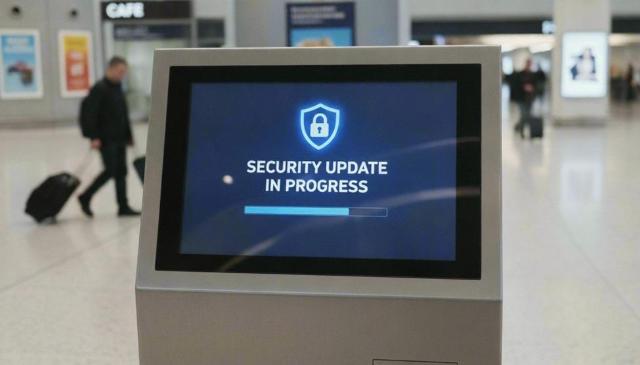
Visitor check-in terminals, retail information kiosks and transport ticket machines make connected technology accessible to the public. Their screens may provide access to business services, while their applications collect personal information or process transactions.
That combination creates a security challenge: organisations must allow useful public interaction while controlling what happens behind it. Protecting a kiosk therefore requires attention to its installation, software permissions, network connections and ongoing management. Restricting the user interface is only one part of keeping a kiosk secure.
Protecting the Device from Physical Interference
Consider a hypothetical reception kiosk with an accessible USB port and an unlocked rear panel. Someone could attach a peripheral, disconnect its network cable or interfere with internal components, potentially disrupting check-in or creating an opportunity for further access.
Secured housings, protected cable routes and controlled access to maintenance panels reduce those opportunities. Where possible, disable unnecessary ports through device settings, and physically protect connections that must remain available.
Organisations selecting kiosk hardware should consider whether enclosures, connection points and installation arrangements are suitable for publicly accessible environments. A supervised reception and an unattended transport concourse present different conditions.
Routine inspections should check for loose panels, unfamiliar attachments and damaged locks. Staff need a clear route for reporting concerns before returning a suspect device to service.
Restricting What Users and Applications Can Access
Kiosk mode limits the interface users see, but its effectiveness depends on the surrounding configuration. An application error, external link or file dialogue could expose options beyond the intended workflow.
Allow only approved applications, restrict browser destinations and block public access to operating system settings. Test error screens, downloads and keyboard shortcuts as well as the normal touchscreen journey.
Apply least privilege: the kiosk account should have only the permissions necessary for its task. It should not require administrator rights or broad access to shared business resources. Separate maintenance permissions from those used during everyday public operation.
Shared-session privacy needs separate attention. Imagine a visitor abandoning a check-in form containing their contact details. An inactivity timeout should return to the menu screen, clear displayed information and end any signed-in session. Remove temporary files and prevent browser history or autofill from exposing previous entries.
An information-only kiosk and a terminal handling personal data need different controls. Verify session cleanup against what the application actually stores, rather than assuming closing its window removes everything.
Controlling Network and Administrative Access
If an attacker compromises a kiosk application, its network permissions determine what they can reach next. Network segmentation places kiosks in a separate network area, limiting their access to other systems.
That separation needs enforced access rules. Permit only required connections, such as the application service, update infrastructure and approved management tools. A separate network segment offers little protection unless access rules restrict traffic. Firewall rules should block unnecessary communication between kiosks and internal business systems.
Encrypt communications using supported protocols such as HTTPS, with certificate validation enabled, to protect information travelling between the kiosk and its services.
Keep public interaction separate from privileged administration. Protect management systems with individual administrator accounts, permissions appropriate to each role and multifactor authentication where supported. Avoid shared credentials that make changes difficult to trace. Restrict remote maintenance access to authorised staff through protected access paths, and remove access when no longer required.
Keeping Kiosks Secure Through Updates and Monitoring
Security controls need upkeep after installation. Maintain an inventory showing each kiosk’s location, responsible owner, software versions and support status. This helps teams identify devices affected by a vulnerability or approaching the end of software support.
Schedule updates for operating systems, browsers, applications and relevant firmware. Test changes on representative devices before wider deployment, while prioritising urgent security fixes. Replace unsupported software when security updates are no longer available.
Central management can help teams oversee kiosks across multiple locations. When choosing a management platform, organisations should consider remote administration capabilities, monitoring features and ongoing support.
The management platform also needs protection because its permissions may span many endpoints. Review administrator access and monitor significant configuration changes.
Assign responsibility for responding to repeated application failures, unexpected connections and missing device reports. Teams should have a tested way to isolate an affected kiosk and restore a known, approved configuration before reconnecting it. Clear ownership turns an alert into an operational response.
Bringing the Controls Together
Kiosk security depends on controls working together throughout the device’s life. Physical protection limits interference, software restrictions contain public interaction, and network rules constrain connections. Maintenance and monitoring help keep those protections effective as applications and operating conditions change.
Together, these measures support dependable public services and protect the information passing through them. The touchscreen is the visible interface, but the service's security depends as much on the systems and people behind it.